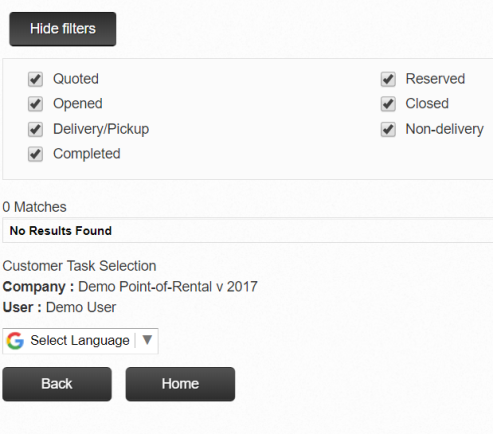
Customer Actions
You can enter or scan in contract number.
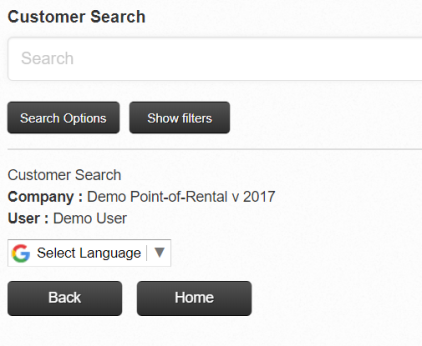
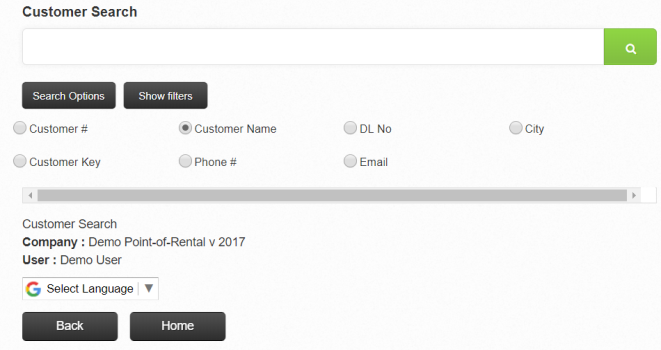
Selecting the "Search Option" or "Show Filters" will display additional search features when searching for a contract. Ex. (Customer #, Customer Name, DL No, City, Customer Key, Phone, Email).
Entering an * in the Contract Search field, will display all customer contracts sorting by (Key, Contract No, Name City, Address, Telephone, Status)

Selecting the contract number, will display more detailed information about the contract.
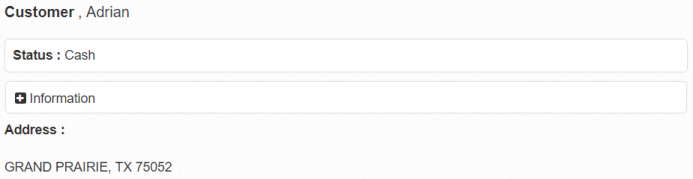
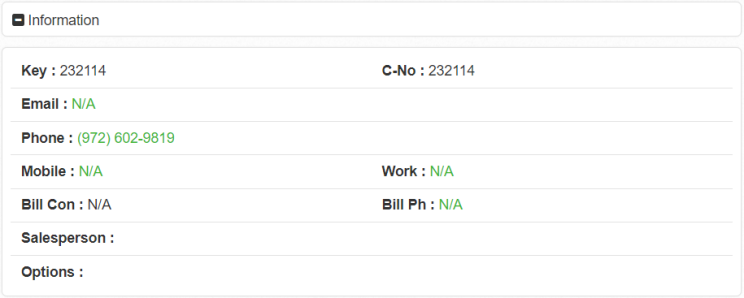
Information
Selecting this options will display detailed information about the customer to include (Customer Key, Email, Phone, Mobile, Bill Contact, Salesperson, Work # and Billing Phone #).
There are many useful tools a salesman or driver can use to access, enter or update to a customer contract in the field.
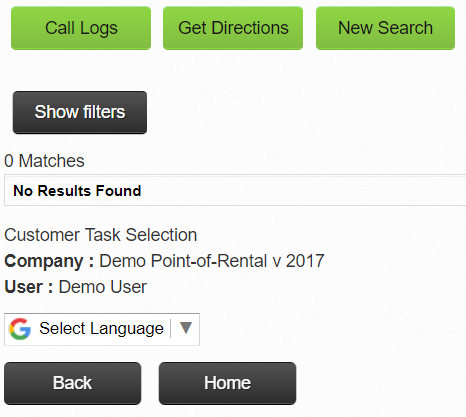
Call Logs - Allows you to create add notes to a call log. This will be updated on the customer contract.
Get Directions - - Will use your default mapping app to display the address and allow for turn by turn directions. (Tested with Google Maps and Waze; may work with other map apps).
New Search - Will allow you to search other customer contracts.
Show/Hide Filter
The Show/Hide feature display options to refine your Contracts, Customer, and Item Searches by Item Type, Contract Status, Sales Rep, Customer Type. These selections are saved to your device, when the next time you do a search, these features will apply.